15 Premium WordPress Themes for $59 - Just $3.93 Each. Save $376
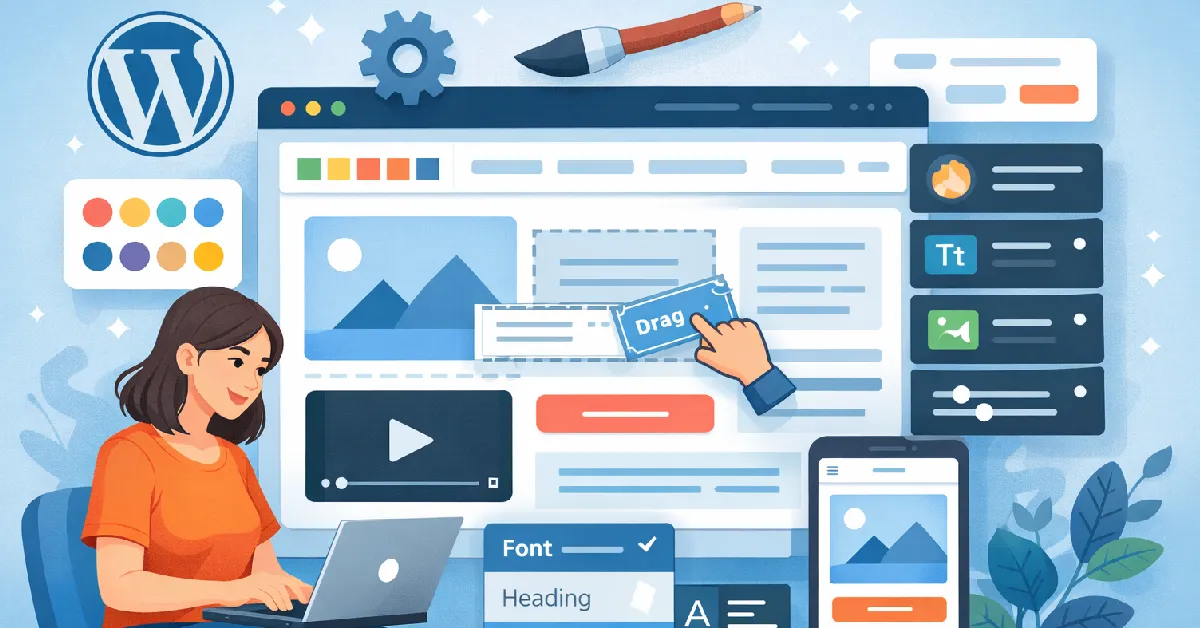
Many people assume you need programming skills to build a professional website. Fortunately, modern WordPress tools make it possible to create a polished, high-performing site without touching a single line of code.
With the right approach and a well-built SEO-Ready WordPress Theme, you can control layout, colors, typography, and content entirely through visual tools.
In many business websites we’ve worked on, owners successfully managed their own design changes after launch using built-in customization features. If you’re starting from scratch, exploring flexible WordPress themes designed for non-technical users can make the process much easier.
Customization is far easier when the theme is designed with flexibility in mind.
An SEO-friendly theme typically includes:
These features ensure that design changes don’t compromise website performance or search visibility.
You don’t need coding knowledge, just familiarity with the WordPress interface.
Most customization happens in three places:
Each tool controls different aspects of your website design.
The built-in Customizer is accessible via:
Appearance → Customize
Here you can adjust core design elements.
Changes appear instantly in preview mode, making experimentation safe.
Visual builders allow deeper customization.
If your theme supports drag-and-drop editing, you can redesign pages visually.
You can explore Elementor WordPress themes designed specifically for this workflow.
From our UX projects, clients using visual builders made fewer layout mistakes than those editing raw theme files.
Here’s a simple process for customizing pages with Elementor.
Click “Edit with Elementor” on any page.
You can:
Click any element to modify:
Customize:
Switch to tablet and mobile views to ensure a responsive design.
Mobile adjustments are crucial for user experience and website conversion.
Small changes can dramatically improve visual appeal.
Based on real user behavior we’ve observed, clarity often outperforms complexity.
Your website should reflect your brand identity.
Key branding elements to adjust:
Consistent branding builds trust and recognition.
Widgets add functionality without coding.
You can place them in:
Examples include:
Menus control navigation structure, which affects usability and SEO.
Many themes include ready-made templates.
These allow you to:
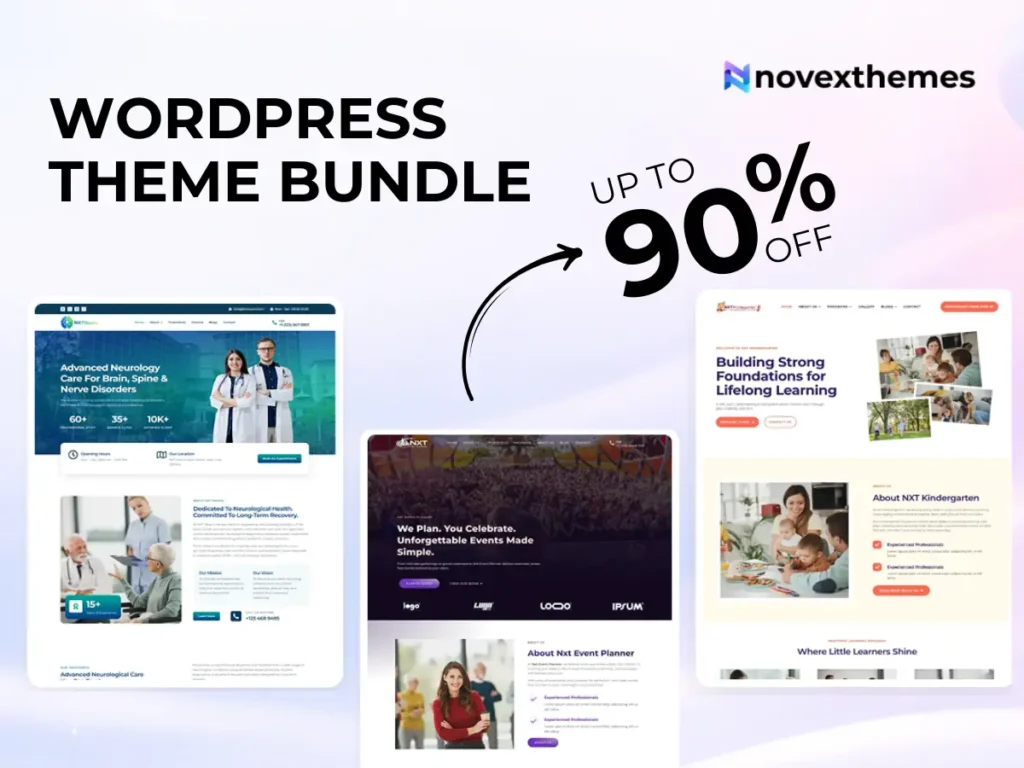
If managing multiple projects, a WordPress theme bundle can provide diverse templates for different industries.
Free themes can offer basic customization features.
You can explore Free WordPress themes if you’re experimenting or on a limited budget.
Premium themes typically provide:
For business sites, premium options often reduce limitations.
Plugins extend functionality beyond the theme.
Examples include:
Ensure plugins integrate smoothly to maintain website performance.
Customizing a WordPress theme without coding is not only possible, but it’s also the standard approach today. With visual tools, flexible layouts, and well-designed themes, anyone can create a professional website that looks unique and performs well.
Starting with an SEO-ready foundation ensures your customization efforts support both user experience and search visibility. Focus on clarity, consistency, and usability, and your site will serve visitors effectively.